

How to add machine on Tailscale

Problem Statement
Sometimes we have machines located in different places and networks. This creates access and management challenges.
Common Issues
Server located in another site or data center
Client PC inside a private LAN (behind NAT)
No public IP available
Firewall blocking direct access
Traditional VPN setup is complex and hard to maintain
Port forwarding increases security risk
Why We Use Tailscale
Securely connect machines across different networks
No need to expose public IP or open ports
Encrypted communication between devices
Access remote machines as if they are in the same local network
Simple deployment without complex VPN configuration
Tools Required
Before starting, ensure the following:
System Requirements
Linux machine (Ubuntu Server / Desktop recommended)
Root or sudo access
Internet connection
Access Requirements
Tailscale Admin Console access
Auth Key generated from:
Admin Console → Settings → Keys
This guide explains how to:
Install Tailscale
Join the machine to your Tailnet
Enable IP forwarding
Advertise local network routes (optional)
1) Install Tailscale
Run:
curl -fsSL https://tailscale.com/install.sh | shVerify installation:
tailscale version2) Join Machine to Tailnet
Run:
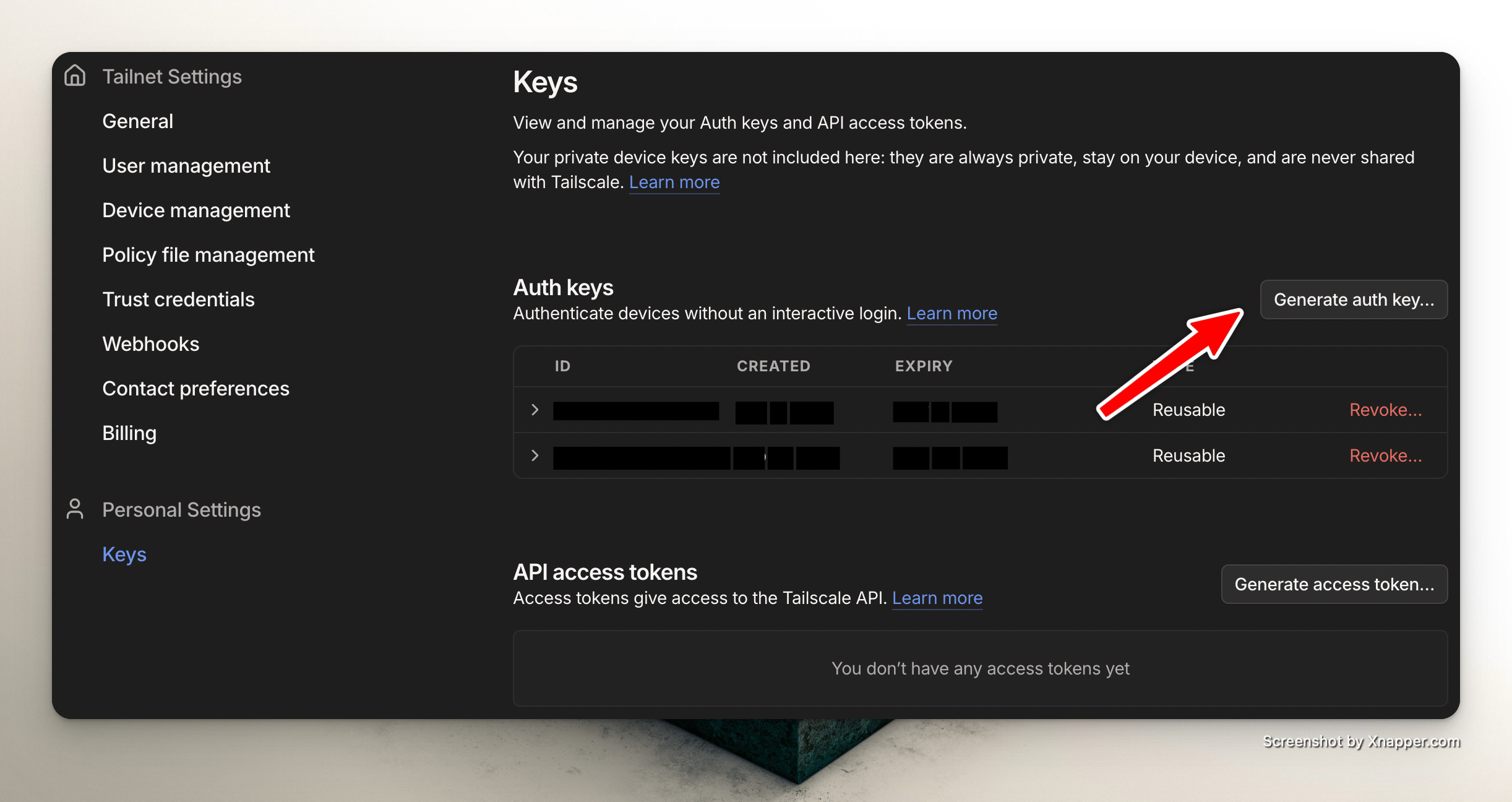
sudo tailscale up --accept-routes --auth-key=<INSERT_AUTH_KEY_HERE>Replace <INSERT_AUTH_KEY_HERE> with your auth key from:
Tailscale Admin Console → Settings → Keys
What this does
Authenticates machine to your Tailnet
Accepts routes advertised by other nodes
Check status:
tailscale status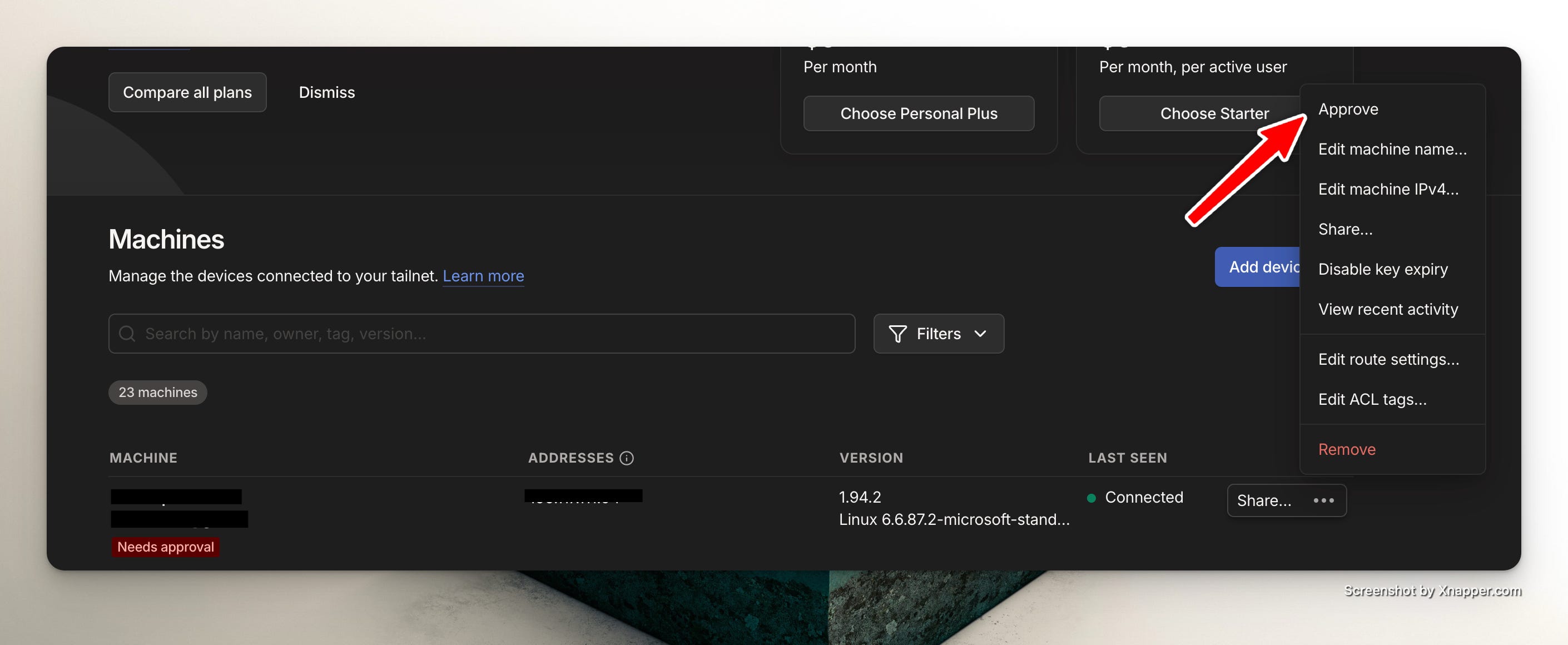
3) Enable IP Forwarding (Required for Subnet Router)
If this machine will act as a subnet router, enable forwarding.
Enable IPv4
echo ‘net.ipv4.ip_forward = 1’ | sudo tee -a /etc/sysctl.d/99-tailscale.confEnable IPv6
echo ‘net.ipv6.conf.all.forwarding = 1’ | sudo tee -a /etc/sysctl.d/99-tailscale.confApply Configuration
sudo sysctl -p /etc/sysctl.d/99-tailscale.confVerify:
sysctl net.ipv4.ip_forwardExpected output:
net.ipv4.ip_forward = 14) Advertise Local Network (Optional – Subnet Router Mode)
If this machine connects to a local LAN and you want remote Tailscale users to access that LAN:
sudo tailscale set --advertise-routes=X.X.X.X/24Replace X.X.X.X/24 with the actual LAN subnet.
Example:
sudo tailscale set --advertise-routes=192.168.1.0/24
5) Approve Route in Admin Console
After advertising routes:
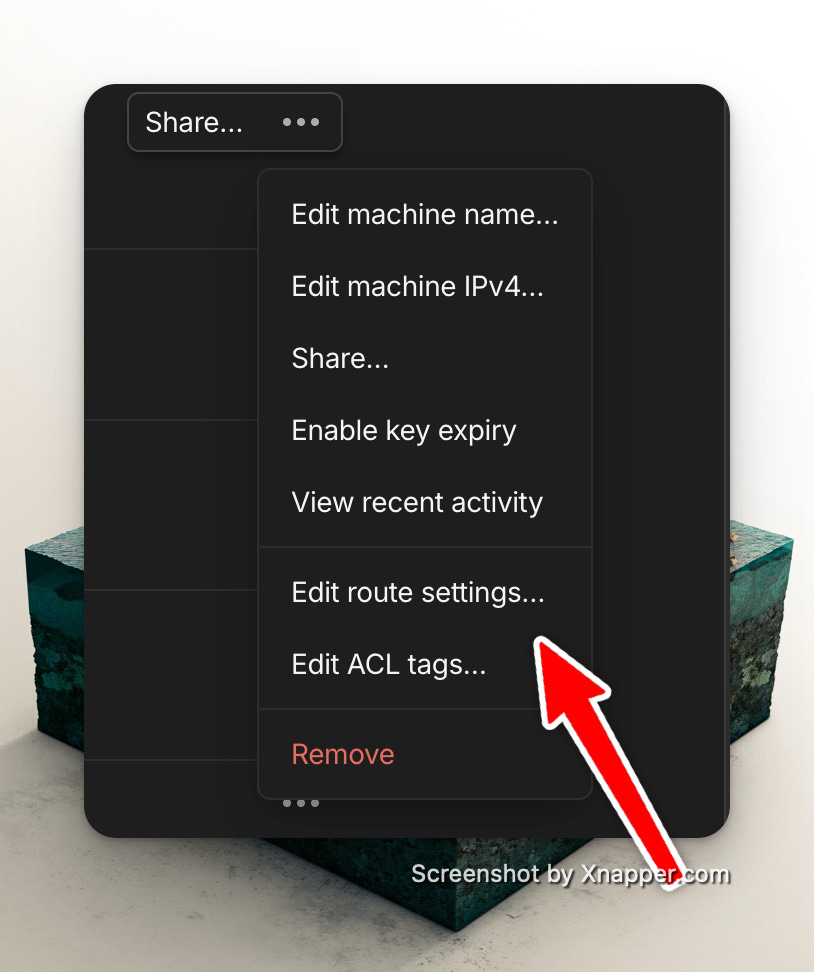
Go to Tailscale Admin Console
Open Machines
Select the new machine
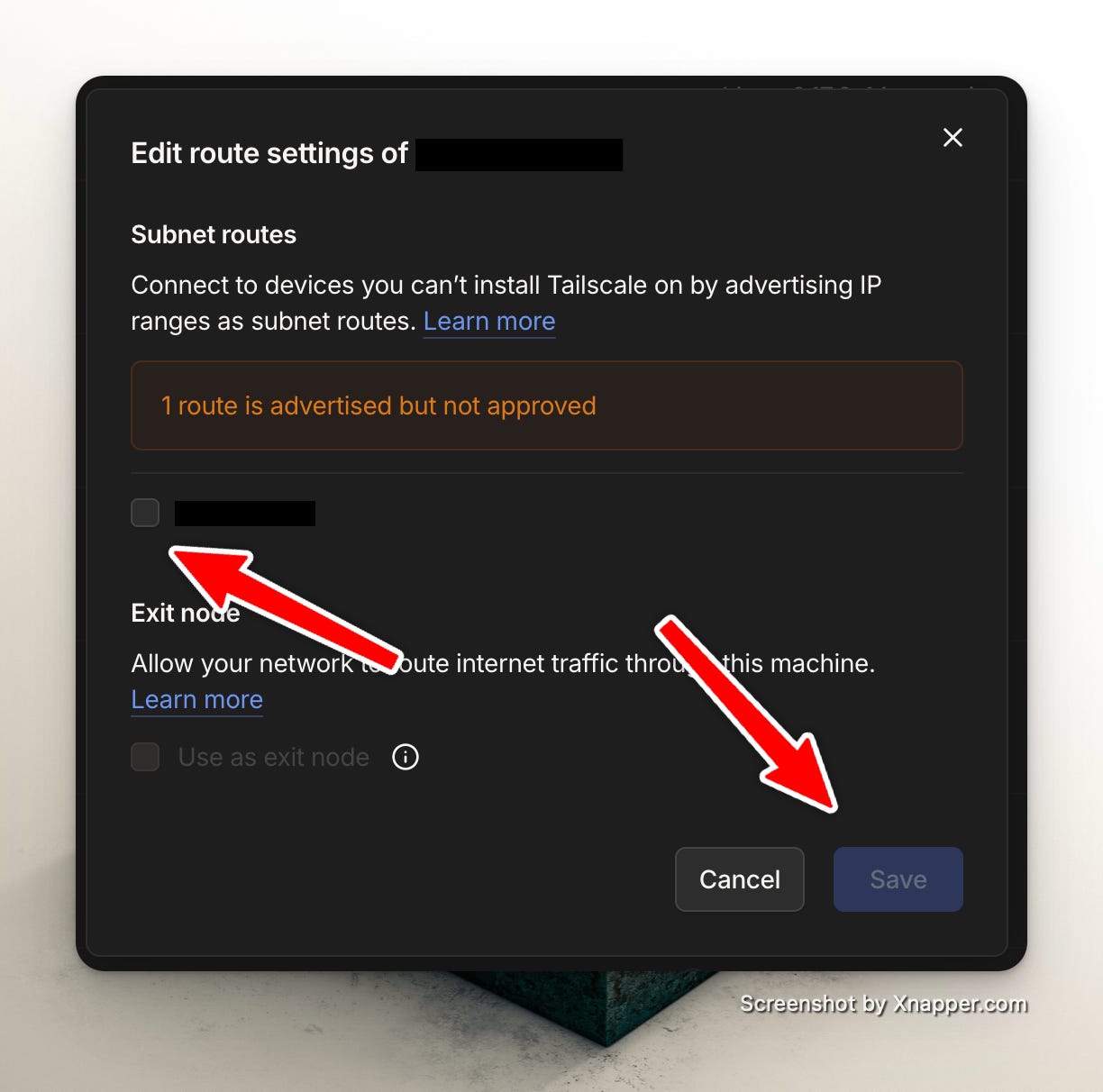
Enable the advertised subnet
The route will not work until approved.
Important Notes
Auth keys can expire (check expiration in the Admin Console).
If you do not want the machine to expire, disable key expiry when creating the auth key in the Admin Console.
Route advertisements must be approved manually.
Firewall (UFW / firewalld) must allow forwarding if enabled.
If using as an exit node, additional configuration is required.